Fix a misread before you save the contact
Recognition will get a line wrong. The Review screen is built so that the wrong line is the one you notice. The instruction printed on it is “Tap quick fixes on highlighted fields.”
Android later An Android version is planned. There is no Google Play listing, so this is not a download link.
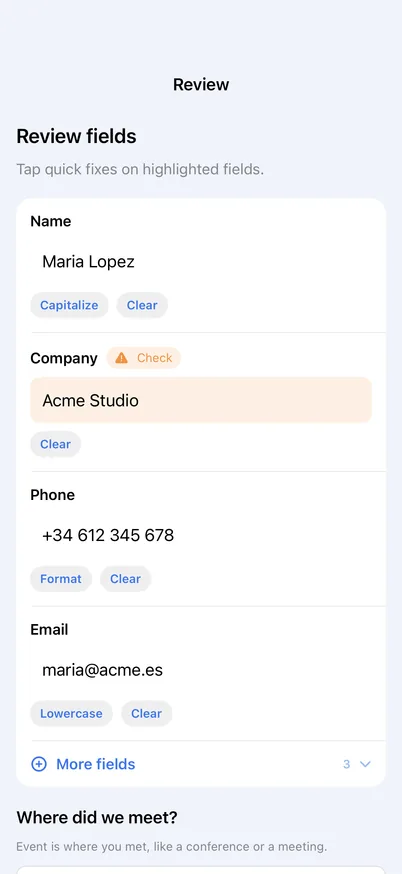
In that sample, Name is Maria Lopez and offers Capitalize. Company is Acme Studio, shaded, with a Check warning and Clear. Phone offers Format and Clear. Email offers Lowercase and Clear. More fields sits under them for the lines that are not those four, such as a job title. None of this is a person you should contact. It is the app's sample of an unsure company line.
What each chip does, and what it does not
Capitalize changes the case of the name. It does not know whether “Maria” was actually “Marta.” Format rewrites the phone into a consistent shape. It does not know which digit the glare invented. Lowercase drops capitals inside an email, which is usually what you want, and it will also lowercase a letter that was supposed to stay if you had a truly case-sensitive local-part. Clear empties the field so you can type it. Check, on a highlighted company, is the recognizer saying it is unsure. Accept the line only after you have looked at the card.
A logo is the usual reason Company is highlighted. The legal name is in a small line under a wordmark, and the wordmark is what the camera treats as the company. If the line is a slogan, Clear it and type the name. If the email contains an O that should be a 0, no chip will catch it. Read the address.
When to reshoot instead of editing
Edit when one field is dirty and the rest is right. Reshoot when the frame held two cards, when a finger covered a corner, or when a white streak of glare crosses the type. Glossy stock is a lighting problem first, written up on glossy cards. A card in a language you left switched on by mistake is a settings problem, on OCR languages. The app reads English, Spanish, Russian and German only.
Handwriting on the back of a card will not come through reliably. Type that note yourself onto the card in the app. The front's printed phone number is the part worth recognizing.
If one layout fails every time you try it, email support@businesscardscannerapp.com with the device model, the iOS version, and a description of the layout: where the logo sits, whether the type is white on a photo, whether the phone is vertical. Do not attach a photo of someone else's card. The support page says the same thing, because the card belongs to the person on it.
After the fields match the paper, save. Saving a repaired card to Contacts is a separate step, on save to Contacts, so a typo does not become the number you dial for a year.
Install Card Scanner OCR
The Review screen is the product. Install Card Scanner OCR on iPhone or iPad and try it on a card you can hold next to the phone.