Home / Features
What the app actually does with a card
Four screens do the work: the Cards list, Review, My card, and Settings. Nothing here is a cloud inbox or a shared team address book.
Android later An Android version is planned. There is no Google Play listing, so this is not a download link.
Cards list
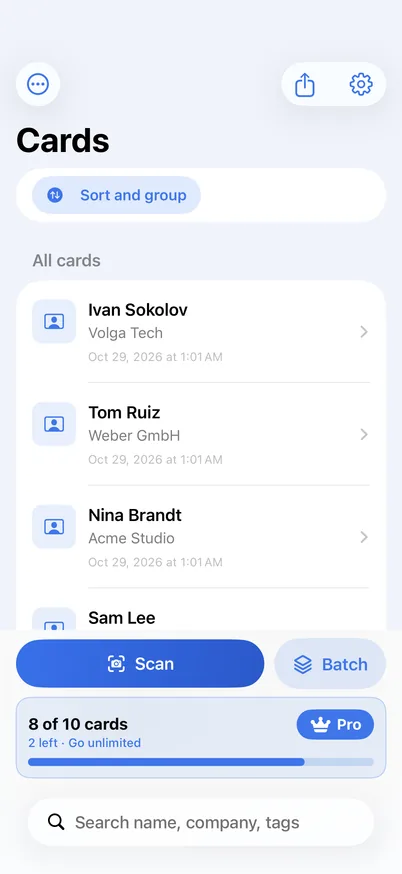
The list is the home of the app. Each row shows the person's name, the company, and the time you saved the card. Scan handles one card. Batch handles the next card, and the next, so a stack does not mean reopening the camera from scratch each time. The difference in practice is on the batch scan page.
Sort and group sits above the rows. Use it when a long day is easier to read organized than as one scroll. The search field at the bottom reads “Search name, company, tags.” An event you typed under “Where did we meet?” is something you can find again that way.
The free plan shows a counter, such as “8 of 10 cards,” and how many slots are left. Deleting a card frees a slot. Pro removes the cap. The counter is a property of the list on this device, not of Apple Contacts. A person you already saved to Contacts does not consume a slot.
The share button at the top of the list exports the cards as CSV or as vCard. That export is included on the free plan. From one card you can also write a single vCard, a single CSV row, or save that person to Contacts.
Review
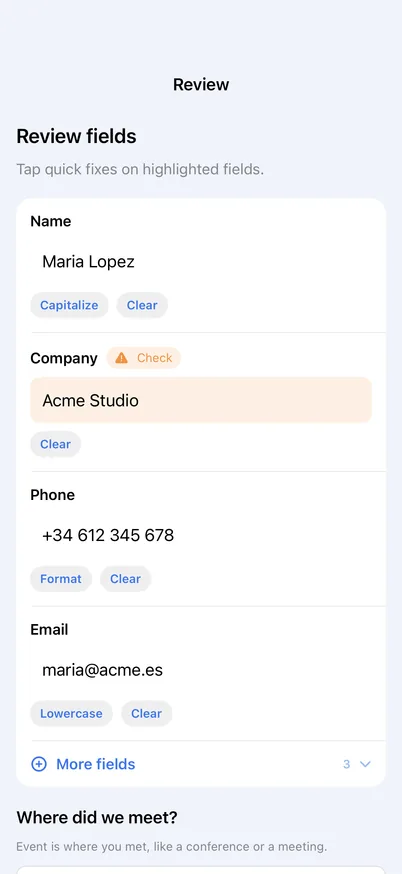
Review is where a misread is supposed to be caught. The screen says “Tap quick fixes on highlighted fields.” In the sample, Company is shaded and marked Check, because “Acme Studio” is the kind of line a logo confuses with a slogan. Name offers Capitalize. Phone offers Format. Email offers Lowercase. Clear empties a field you would rather type.
More fields holds the lines that are not the main four, such as a job title. A count sits beside that control. Under the fields, “Where did we meet?” asks for the event: a conference, a meeting, a dinner. Settings includes a default event name under Meeting defaults so a whole afternoon can share one spelling. The field-by-field path is Fix a misread.
A card can also hold a note, a favorite mark, and a follow-up reminder. The reminder is a local notification on this iPhone. It is not sent through our server. The follow-up page is the practical version of that.
My card
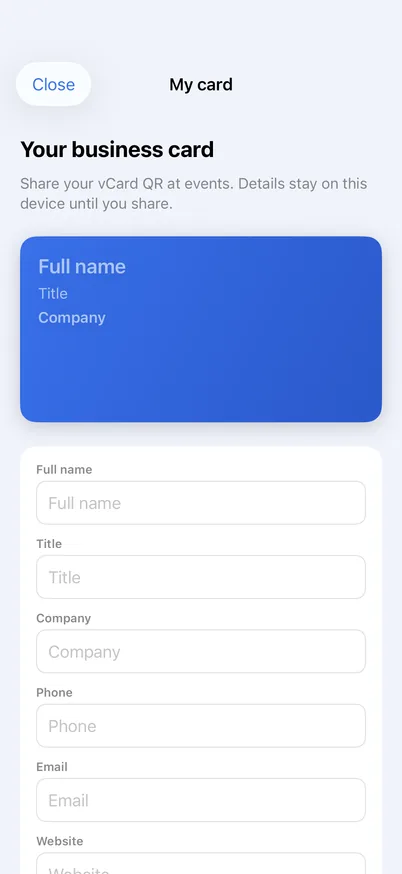
The screen says “Share your vCard QR at events. Details stay on this device until you share.” The fields are full name, title, company, phone, email and website. You fill them in. There is no step that photographs your paper card and turns it into this QR. When you are ready, you show the code. Until then it does not leave the phone. See Your card as a QR.
Settings
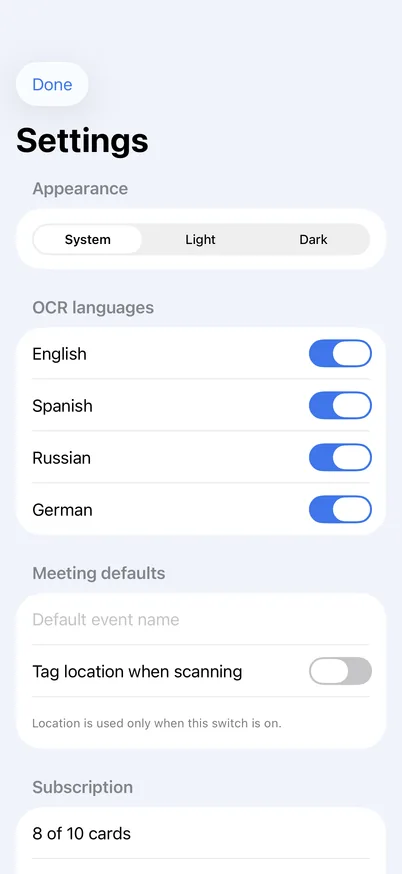
Appearance follows the system, or you can pin Light or Dark. OCR languages are four switches: English, Spanish, Russian, German. Leave on only the languages on the cards in your hand. The reason is on the languages page, including what happens with a card in a fifth language.
Meeting defaults include a default event name, and a switch labeled “Tag location when scanning.” The caption under that switch is the rule: “Location is used only when this switch is on.” It ships off. Turn it on only if you want a place tag on the card. You can revoke location permission later in iOS Settings.
The subscription block shows the same count as the list, such as “8 of 10 cards.” Restore Purchases is here and on the Pro screen. Use it with the same Apple ID when you move phones. Moving the cards themselves is a different job, covered in Move to a new iPhone.
What is deliberately missing
There is no account, no web inbox of your cards, and no shared workspace. Recognition does not run on a server. The app will not read a payment card, a trading card, a passport, or a receipt pile. Those are listed on what it will not scan so you do not install it for the wrong job.
Install Card Scanner OCR
Every feature above is in the iPhone and iPad app. Install Card Scanner OCR, Apple ID 6826535362, on iOS 17 or later.